How to Claim Your Business in ChatGPT (Business Hub Setup Guide)
OpenAI now lets businesses verify a profile and see how often ChatGPT mentions them. Here is how to set it up, and what the numbers can and can't tell you.
On November 10, 2026, OpenAI opened Businesses in ChatGPT in beta. You can now claim your business in ChatGPT through Business Hub, verify it, and see how often ChatGPT mentions your website. This guide walks through the claim, the verification options, the Persona identity check, and how to read the new Insights dashboard without overreading it.
Best for
- Founders of AI startups and SaaS products
- Marketing leads who own AI search visibility
- E-commerce operators
- Agencies that manage client listings
Requirements
- A ChatGPT account you will use to manage the business
- Access to one verification route: business phone, business email on record, website DNS, or Shopify admin
- A government ID and business registration details for the Persona check
- Your current logo, description, category and return or delivery policies
What Businesses in ChatGPT actually is
Businesses in ChatGPT has two parts. Business Hub is where you claim your business in ChatGPT, verify that you own it, keep its details accurate, and see aggregate Insights. Business Agents are optional chat assistants that ChatGPT users can open from your profile.
Think of Business Hub as the ChatGPT version of a verified business listing plus a small search console. It is free in beta. It does not buy you placement: OpenAI says paying does not change how often ChatGPT recommends a business.
Who can claim a ChatGPT business profile right now
Eligibility is the part most people get wrong, so check it before you block out time. As of November 12, 2026, this is what is known:
- You must own the business or be authorized to represent it.
- Online businesses with a website can claim an existing listing, or add one if ChatGPT has none.
- Local stores and restaurants can only claim an existing US listing. They can't add a new one yet.
- Some categories are on hold, and OpenAI may decline claims that raise safety or integrity concerns.
- OpenAI has not published a full country list. Non-US online businesses are not explicitly excluded, but confirm by starting a claim.
- Business Agents are limited to eligible US e-commerce and online-service businesses.
Claim your business in ChatGPT, step by step
Use the ChatGPT account that should own the profile long term. A shared team login is better than a personal account that leaves with an employee.
- 1.Sign in to ChatGPT on the web and open Business Hub from the sidebar.
- 2.Search for your business by name and select the listing that matches. If you run an online business and nothing matches, choose the option to add a profile.
- 3.Confirm which ChatGPT account will manage the business.
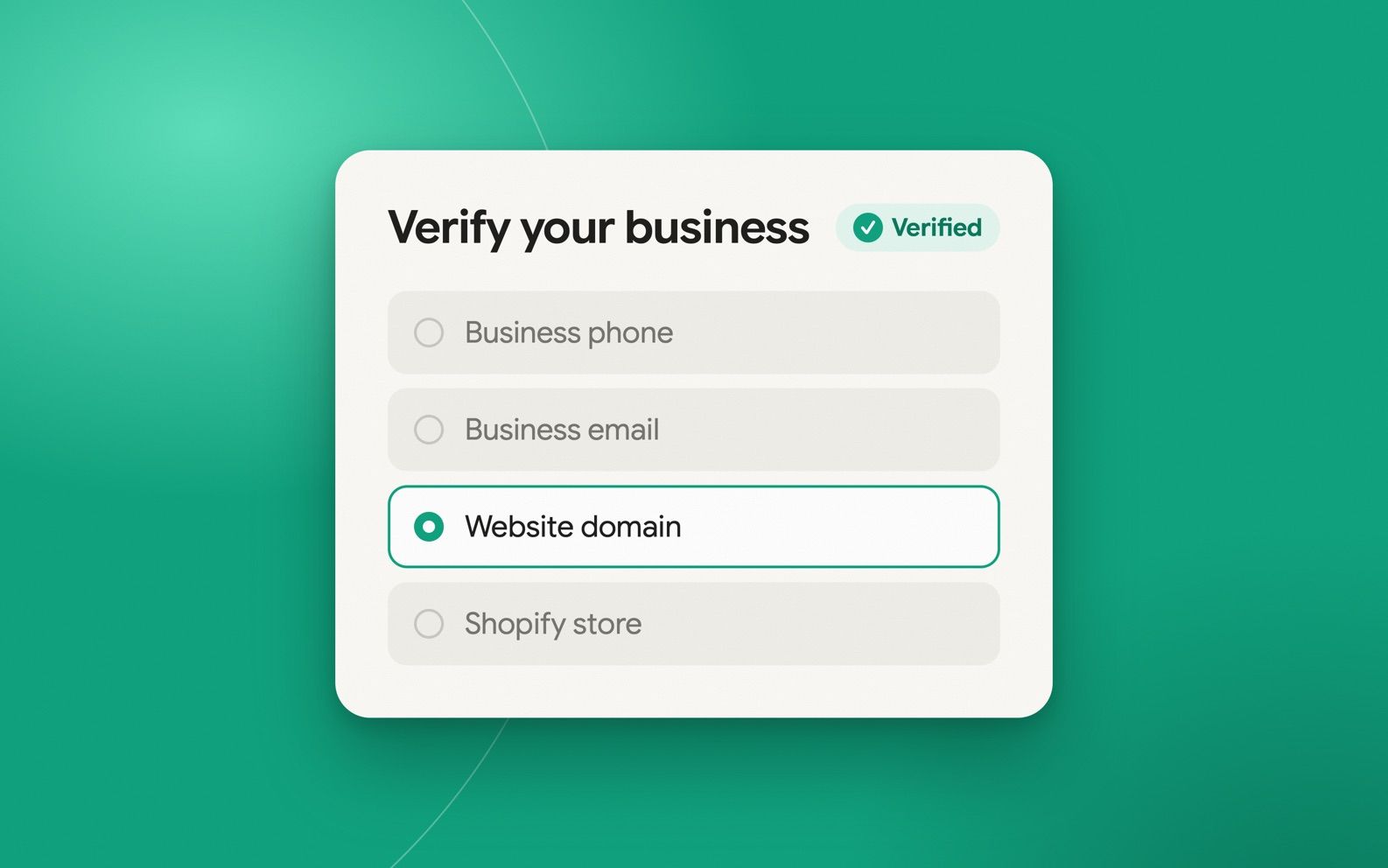
- 4.Pick one of the verification methods ChatGPT offers you and complete it (details below).
- 5.Wait for OpenAI to review the claim. You get the result by email, and you can cancel while it is pending.
- 6.Complete the Persona identity check so you can edit details and see Insights.
Sources: OpenAI Help Center
Pick the verification method that will actually work
For most online businesses, the website domain route is the most reliable, because you control it and it does not depend on an old phone number or inbox.
- Business phone: choose a text or an automated call, then enter the code. Best for local businesses with a listed number.
- Business email: the code goes to the email already on the business record, not one you pick. If nobody reads that inbox, use DNS instead.
- Website domain: add the TXT record ChatGPT shows to your DNS, then select Verify domain. Copy the type, host and value exactly.
- Shopify: select Connect Shopify, review the permissions and sign in to the store you are claiming.
DNS tip: many DNS providers add your root domain to the host field automatically. If ChatGPT shows a full host name, you may only need to enter the part before your domain. DNS changes can take a while to show up, so retry before you change the record.
Pass the Persona identity check
Verifying the listing is not the last step. OpenAI uses Persona, an identity verification service, to confirm that a real person can represent the business. Select Verify with Persona and follow the prompts. If you skipped it during the claim, you can start it later from the Business tab.
Have a government ID, business registration details and proof that you can represent the business ready. The legal name, address and any tax number should match official records exactly, or the check can stall.
Fill in the profile ChatGPT will show
Once you are approved, you can edit the fields below. OpenAI reviews each edit before it goes live, so ChatGPT answers may lag behind your changes.
- Website: use your canonical https URL, not a campaign link.
- Description: one or two plain sentences on what you sell and who it is for. Match the wording on your homepage.
- Category: pick the narrowest one that fits.
- Logo and optional cover photo.
- Delivery and return policies, if you sell online. Keep them identical to your site.
Read Business Hub Insights without fooling yourself
Insights is the most useful part of Business Hub, and the easiest to misread. It shows mentions, profile views, website clicks and discovery topics for the past 28 days, as aggregates. It does not show individual prompts or chats.
Read the definitions before you report a number to anyone:
- For an online business, a mention counts only when ChatGPT references your website. Your brand name alone does not count.
- For a local business, a mention counts when ChatGPT shows a result for your location.
- Website clicks are clicks on links from supported ChatGPT surfaces, not completed visits or purchases.
- Low counts may be withheld for privacy, so a blank chart does not always mean zero.
- There is no competitor benchmark or share of voice in the beta, and no data from other AI engines.
Sources: Digiday
Should you launch a Business Agent?
A Business Agent is a chat assistant built from your instructions and product feed. Users open it from your profile, and its chat is labeled and kept separate from ChatGPT's own answers. You can't bring your own agent.
It is only open to eligible US e-commerce and online-service businesses that have finished the claim and the Persona check. If you qualify, it is free to publish in beta, so the main cost is keeping prices and stock accurate. A Sponsored Agent, which uses the agent as the landing page for ChatGPT Ads, is a separate paid option.
If verification fails or someone else claimed it
- Your business isn't listed: online businesses may see an option to add a profile. Local businesses can't add one yet.
- You see Contact support instead of verification options: the listing is locked. Contact OpenAI support from that screen.
- Someone else claimed your business: open the profile, select the three-dot menu, choose Dispute ownership, and verify with Persona.
- The domain check keeps failing: confirm the TXT record with a DNS lookup tool, check you didn't double the root domain in the host field, and wait before retrying.
- You received a forwarded claim invitation: don't use it. Invitations only work for the email address they were sent to.
Claim your business in ChatGPT checklist
A prompt to check how ChatGPT describes you
Insights tells you how often you appear, not what ChatGPT says about you. Run this in a fresh chat before and after you update your profile, and compare the answers.
What to do after you claim
Claiming your profile fixes the facts ChatGPT has about you. It doesn't make ChatGPT recommend you more. That still depends on whether AI crawlers can reach your site and whether other sources back up your claims.
Use your first 28 days of Insights as a baseline, then work through our AI search optimization audit to find the gaps.
Sources
- OpenAI Help Center: Setting up your business on ChatGPT
- The Next Web: OpenAI lets businesses claim ChatGPT profiles and launch their own agents
- Digiday: OpenAI's new business agents give brands a free way into the conversation
- Quartz: OpenAI adds verified business profiles and AI agents to ChatGPT
- Ansvisor: ChatGPT Business Hub setup and what it doesn't tell you
Founder and Editor
Brian Weerasinghe is the founder and editor of AI Eating The World, where he covers artificial intelligence, tech companies, layoffs, startups, and the future of work. His reporting focuses on how AI is transforming businesses, products, and the global workforce. He writes about major developments across the AI industry, from enterprise adoption and funding trends to the real-world impact of automation and emerging technologies.