Image: Flickr / Wikimedia Commons / Unsplash
How to Install Claude Code: Native Installer, Homebrew, npm, and WinGet
Every install path for macOS, Linux, and Windows, plus how to verify it worked and log in.
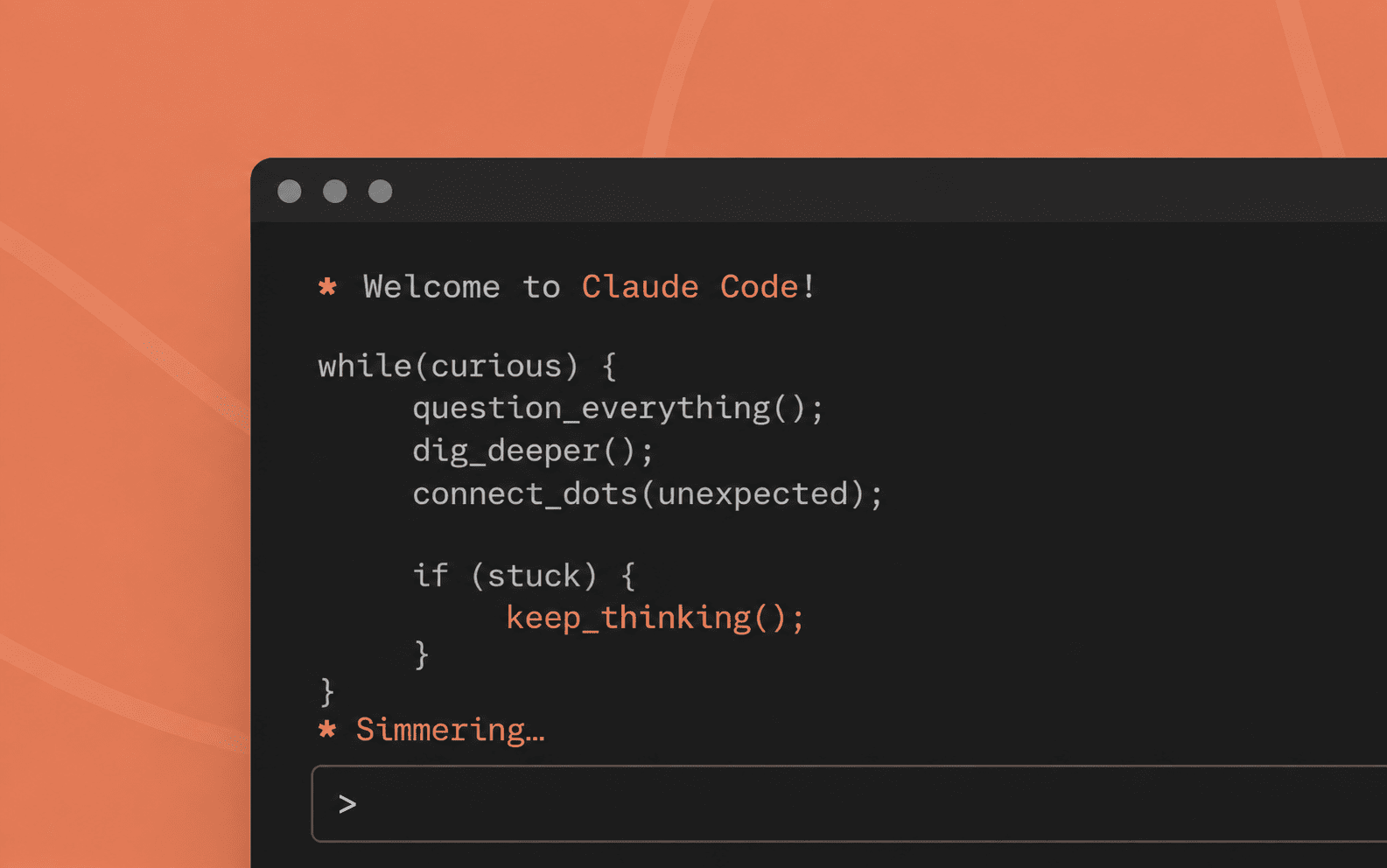
Anthropic's Claude Code turns your terminal into an AI coding agent, and it takes less than ten minutes to get running. This guide covers how to install Claude Code on macOS, Linux, and Windows using the native installer, Homebrew, npm, or WinGet, then how to confirm the claude code installation worked and log in with your account.
Best For
- Developers installing Claude Code for the first time
- Teams standardizing on one install method
- Anyone switching from the npm install to the native installer
Requirements
- A terminal, PowerShell, or WSL
- Node.js 18+ (only needed for the npm install path)
- A Claude Pro, Max, Team, or Enterprise plan, or a Claude Console account
- 4GB+ RAM and an internet connection
What Claude Code Actually Installs
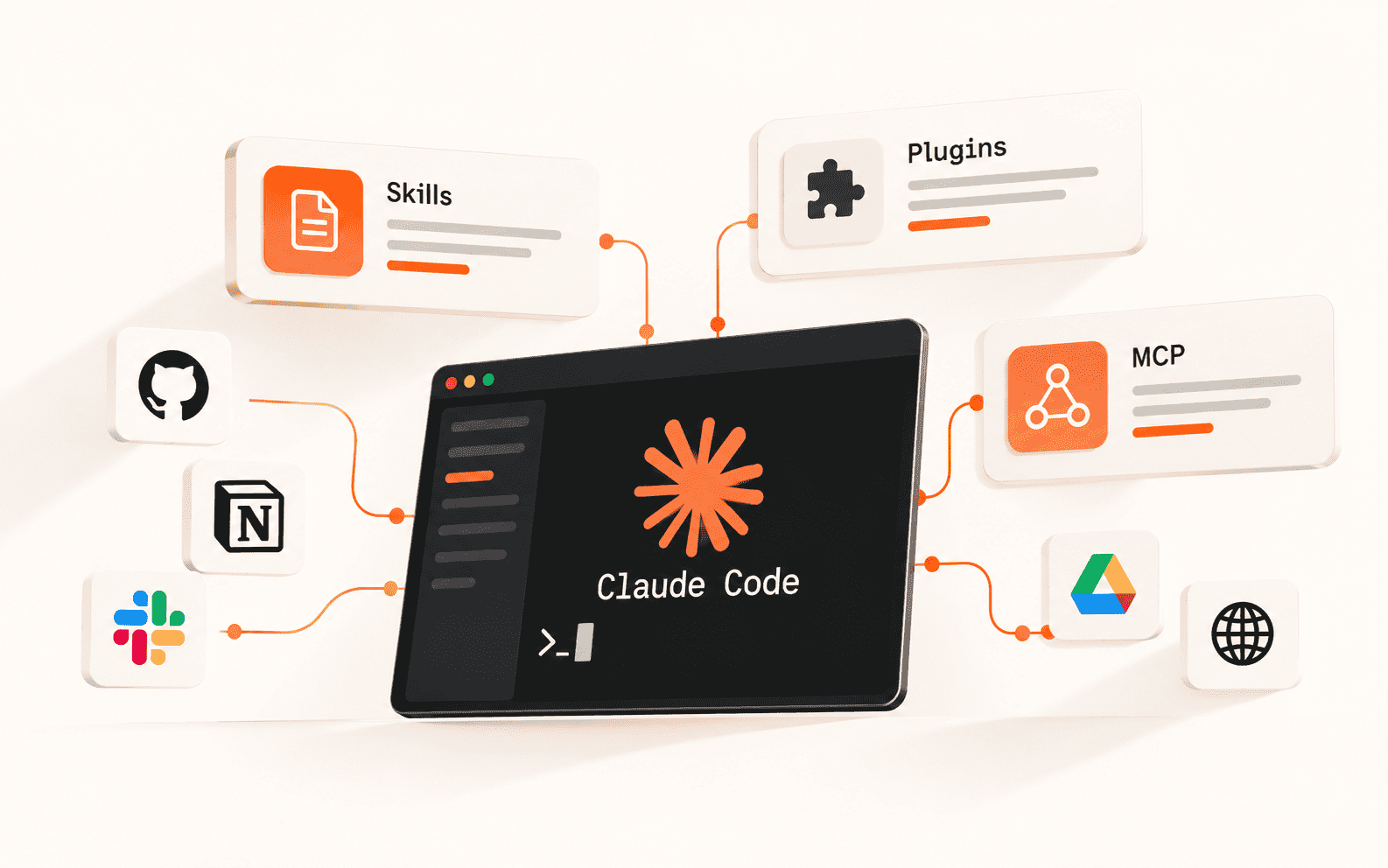
If you're wondering what Claude Code is before installing it: it's Anthropic's command-line coding agent. It runs in your terminal, reads your project files as needed, and can edit code, run Git operations, and fix bugs when you describe what you want in plain English.
There are four ways to install it. Anthropic now recommends the native installer over the older npm method, since it updates itself automatically in the background. The right choice depends mostly on whether you already manage other CLI tools through Homebrew or npm.
Before You Install
Claude Code's system requirements are light. Check your setup against these before you pick an install method.
- Operating system: macOS 13.0+, Windows 10 1809+ or Windows Server 2019+, Ubuntu 20.04+, Debian 10+, or Alpine Linux 3.19+
- Hardware: 4GB+ RAM, x64 or ARM64 processor
- Network: an active internet connection for authentication and AI processing
- Account: a Claude subscription (Pro, Max, Team, or Enterprise) or a Claude Console account with billing enabled
Sources for this section
Install Claude Code on macOS or Linux
The native installer is the fastest way to install Claude Code and the only method that updates itself automatically. Run this in Terminal:
Prefer managing tools through Homebrew? Use the cask instead. Note that Homebrew installs do not auto-update, so you'll need to run brew upgrade yourself later:
If you'd rather do a claude code cli install through your existing Node.js setup, confirm you're on Node 18 or newer first, then install globally. Skip sudo here, since it causes permission issues down the line:
Debian, Fedora, RHEL, and Alpine users can also install through apt, dnf, or apk directly; see Anthropic's setup docs for the exact package names for your distro.
Install Claude Code on Windows
Claude code setup on Windows works natively or inside WSL. The native installer is again the recommended path. In PowerShell:
Working in Command Prompt instead of PowerShell? Use this version:
If your team already standardizes installs through WinGet, that works too. Like Homebrew, WinGet installs need a manual upgrade command later (winget upgrade Anthropic.ClaudeCode):
What Windows Users Should Know First
Git for Windows is recommended for a native Windows install so Claude Code can use its Bash tool. Without it, Claude Code falls back to PowerShell as the shell tool, which works but limits some Git-related commands. If you're running inside WSL, you can skip Git for Windows entirely.
If PowerShell tells you '&&' is not a valid statement separator, you're actually in Command Prompt. If CMD says 'irm' is not recognized, you're in PowerShell. Check your prompt: PowerShell shows PS C:\, plain CMD does not.
Confirm the Claude Code Installation Worked
Open a new terminal window after installing and run:
A working install prints a version number followed by (Claude Code). If your shell says claude isn't found, the install directory isn't on your PATH yet, usually fixed by opening a fresh terminal window.
Run this any time to check your install type and see whether recent auto-updates succeeded:
Log In and Run Your First Session
Claude Code requires an account. Start it from any project directory:
On first use you'll be prompted to log in through your browser. To switch accounts or re-authenticate later, run /login inside a session. If you've already set the ANTHROPIC_API_KEY environment variable, Claude Code skips the login prompt and asks you to approve the key instead.
- Claude Pro, Max, Team, or Enterprise (recommended for most people)
- Claude Console, which auto-creates a dedicated Claude Code workspace for cost tracking
- Amazon Bedrock, Google Cloud's Agent Platform, or Microsoft Foundry for enterprise deployments
Sources for this section
Try Your First Command
Claude Code reads your project files automatically, so you don't need to add context manually. Once you know how to set up Claude Code and you're logged in, these are good first prompts to try:
- what does this project do?
- where is the main entry point?
- what technologies does this project use?
- explain the folder structure
Which Install Method Should You Actually Use
A quick way to decide, based on what you'd rather manage:
- Native installer: best default choice. Auto-updates in the background, no separate upgrade command to remember.
- Homebrew: good if you already manage your CLI tools through brew, but you'll run brew upgrade claude-code yourself when new versions ship.
- npm: makes sense if Claude Code needs to sit alongside other Node-based tooling in your setup, but requires Node 18+ and no auto-updates.
- WinGet: fits Windows teams standardizing installs through a package manager, with the same manual-upgrade tradeoff as Homebrew.
Before You Move On
Brian Weerasinghe is the founder and editor of AI Eating The World, where he covers artificial intelligence, tech companies, layoffs, startups, and the future of work. His reporting focuses on how AI is transforming businesses, products, and the global workforce. He writes about major developments across the AI industry, from enterprise adoption and funding trends to the real-world impact of automation and emerging technologies.