Image: Flickr / Wikimedia Commons / Unsplash
Claude Code Skills: How to Install, Create, and Use Them
Turn repeated coding instructions into reusable skills that Claude can discover automatically or run as slash commands.
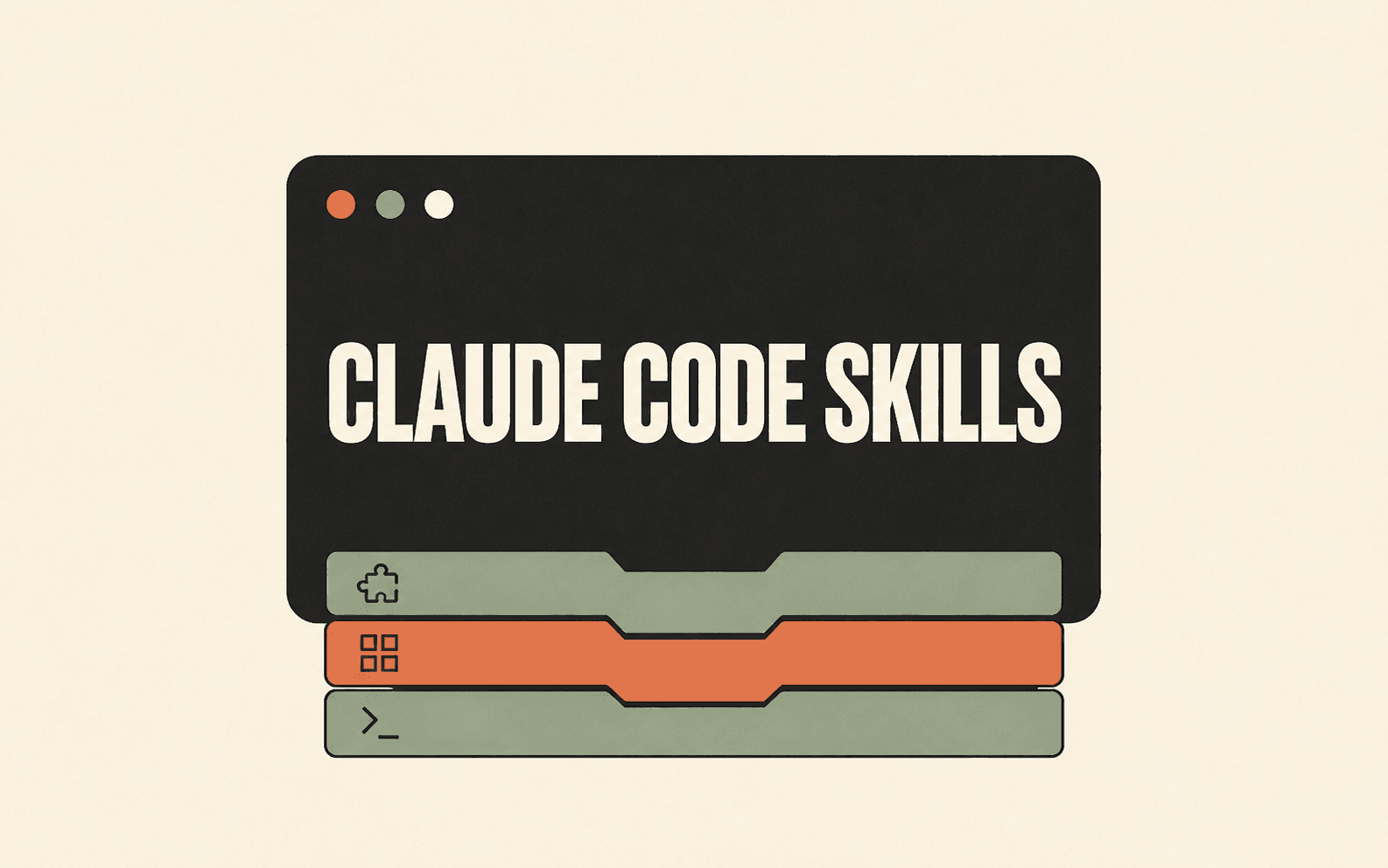
Claude Code skills turn repeatable instructions into reusable workflows that Claude can discover when relevant or run through a slash command. This guide shows you how to install a standalone skill, add skills through plugins, create a focused SKILL.md file, and test whether it triggers and produces the result you intended.
Best For
- Developers who repeat the same review, testing, or deployment instructions
- Teams that want shared project workflows under version control
- Claude Code users evaluating skills and plugins
- Technical leads standardizing how AI-assisted work is performed
Requirements
- A working Claude Code installation
- A terminal and text editor
- A Git repository for project-level skills
- A skill folder or plugin you trust if you are installing third-party content
What Claude Code skills actually do
A Claude Code skill is a folder whose required entry point is SKILL.md. The file combines YAML frontmatter with Markdown instructions. Claude reads the description to decide when the skill is relevant, then loads the full instructions only when the skill is used.
Use a skill for a repeatable procedure, checklist, reference, or multi-step workflow. Keep stable project facts and broad coding conventions in CLAUDE.md. Move a procedure into a skill when it should load only for a specific job, such as reviewing a diff, preparing a release, or debugging an API.
Sources for this section
Choose where the skill should live
Scope determines who can use the skill. Choose the narrowest location that matches the workflow. A personal skill is convenient for your own repeated tasks. A project skill is better when the repository should define and version the workflow. Plugin skills are useful when a package distributes skills with related agents, hooks, or MCP servers.
- Personal: ~/.claude/skills/<skill-name>/SKILL.md, available across your projects.
- Project: .claude/skills/<skill-name>/SKILL.md, shared with people who use that repository.
- Plugin: <plugin>/skills/<skill-name>/SKILL.md, available wherever the plugin is enabled.
- Enterprise: managed by an administrator for everyone in the organization.
Sources for this section
Install a standalone Claude Code skill
Standalone skills do not need a special installer. Place the complete skill folder in a Claude Code discovery directory. Review third-party files before copying them, especially scripts, hooks, dynamic shell commands, and allowed-tools entries.
- 1.Choose personal scope for a skill you want in every project, or project scope for a workflow the repository should share.
- 2.Copy the whole skill folder, not only SKILL.md, so referenced scripts, templates, examples, and reference files remain available.
- 3.Confirm that the destination contains <skill-name>/SKILL.md.
- 4.Open Claude Code in the project and type / to check that the skill appears. If you created the top-level skills directory during the current session, restart Claude Code once.
Copy a reviewed skill into your personal skills directory:
Or install it only for the current repository:
Sources for this section
Install skills that come inside a plugin
Claude Code plugins can bundle skills with agents, hooks, MCP servers, and other capabilities. Use the plugin browser when you want a packaged extension rather than a standalone skill folder. Read the plugin details and requested capabilities before enabling it.
Run the interactive plugin browser, open Discover, inspect the plugin, and install it:
For a known plugin in Anthropic's official marketplace, use this pattern inside Claude Code:
If the installation summary says a reload is required, run /reload-plugins. When it says the plugin is already active, you can use its skills immediately.
Sources for this section
Create your first Claude Code skill
Start with one clear outcome. The description should say what the skill does and when Claude should use it. The body should tell Claude exactly what to inspect, what process to follow, what output to return, and how to handle common edge cases.
Create a project skill for reviewing uncommitted changes:
Save the following as .claude/skills/review-changes/SKILL.md:
Sources for this section
How to use Claude Code skills
There are two ways to use a skill. Ask naturally and let Claude match the request to the skill description, or invoke the skill directly with its slash command. Direct invocation is useful when you want deterministic control over which workflow runs.
Test automatic discovery with a request that closely matches the description:
Then test the direct Claude Code command:
If your skill supports a variable task, include $ARGUMENTS in SKILL.md and pass the value after the command, such as /fix-issue 123.
Sources for this section
Make the skill useful without making it huge
A good skill is specific enough to trigger reliably and short enough to follow. Keep the core procedure in SKILL.md. Put detailed references, templates, examples, and scripts in supporting files, then tell Claude when to read or run each one.
Use concrete trigger phrases in the description. Define the expected output and failure behavior. If the workflow changes files, deploys code, sends messages, or creates other side effects, consider disable-model-invocation: true so only a user can start it.
- Give the skill one primary outcome.
- Name the inputs it needs and the output it must return.
- Reference supporting files with relative links.
- Include an example when output format matters.
- Add edge-case instructions for empty input, failed commands, and missing dependencies.
- Keep secrets, tokens, and private data out of SKILL.md.
Review permissions before you trust a skill
Treat a third-party skill as executable workflow configuration. Read SKILL.md and every referenced script before installation. Look for dynamic shell injection, broad allowed-tools entries, network calls, destructive commands, secret access, and instructions that send or publish data.
The allowed-tools field can let a skill use named tools without a per-use approval while the skill is active. Grant only what the workflow needs. Keep deployment, publishing, purchasing, deletion, and messaging skills user-invoked unless you have a strong reason to automate them.
Sources for this section
When the skill does not trigger or behaves badly
If the skill is missing, confirm the folder path and filename capitalization. If you created a new top-level skills directory after starting Claude Code, restart once. If a plugin skill is missing, verify that the plugin is enabled and reload plugins when the installation summary asks you to.
If the skill triggers too rarely, rewrite the description with the exact requests and contexts that should activate it. If it triggers too often, narrow the description or add disable-model-invocation: true. If output quality is inconsistent, add an explicit output contract, an example, and instructions for edge cases.
Check the skill before your team relies on it
Run the skill on a safe test task and compare the result with the workflow you intended. A skill is ready when it is discoverable, follows the right procedure, returns a usable output, and fails safely.
Turn one useful skill into a reusable system
Start with the review skill above, use it on real work, and edit it when the workflow misses a step. Once the skill is stable, commit project skills with the repository so the team can review changes through normal code review.
Next, explore Claude Code subagents when a workflow needs a separate specialist context, or review the broader beginner guide if you still need to set up Claude Code itself.
Brian Weerasinghe is the founder and editor of AI Eating The World, where he covers artificial intelligence, tech companies, layoffs, startups, and the future of work. His reporting focuses on how AI is transforming businesses, products, and the global workforce. He writes about major developments across the AI industry, from enterprise adoption and funding trends to the real-world impact of automation and emerging technologies.