Image: Flickr / Wikimedia Commons / Unsplash
How to Use Meta's Official Ads MCP and CLI with Claude
Meta just gave AI tools direct, authorized access to your ad account. Here is how to set it up and what you can actually do with it.
Best For
- Performance marketers managing Facebook and Instagram campaigns
- Founders running their own paid social
- Agencies wanting faster campaign workflows
- Developers building agentic ad automation
Requirements
- Claude Desktop (free or Pro) or Claude Code
- A Meta Business account with at least one ad account
- Basic comfort editing a JSON config file (for the MCP path)
What Meta actually shipped

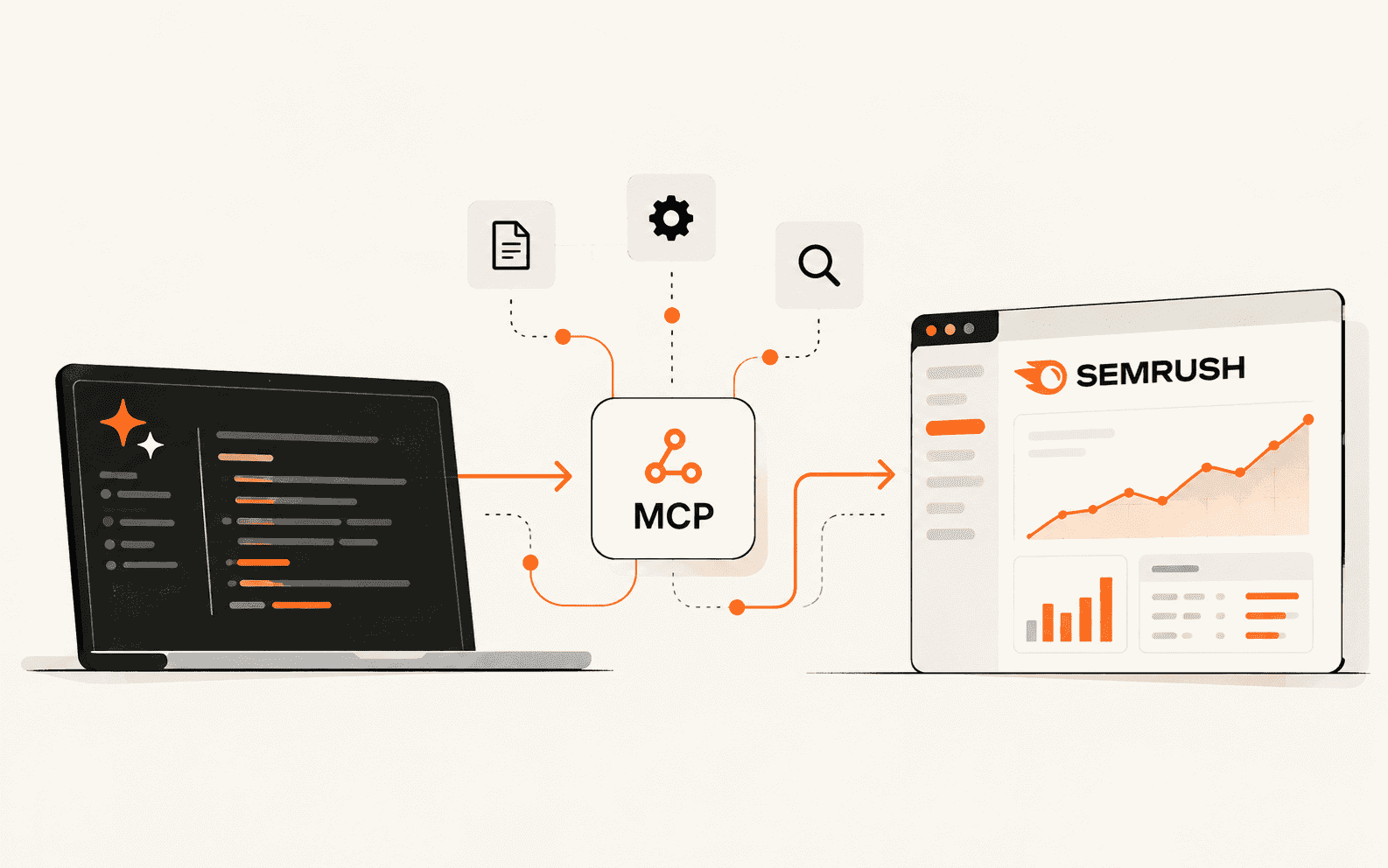
On April 29, 2026, Meta launched its Ads AI Connectors in open beta. The release includes two tools that share the same underlying Marketing API: a hosted MCP server and a command-line interface. Both give AI assistants like Claude direct, Meta-authenticated access to your ad account without requiring a Developer App, an App Review process, or any custom API integration.
This is a meaningful shift. Before this launch, connecting an AI agent to Meta Ads meant creating your own Developer App and waiting weeks for approval, or paying for a third-party connector like Pipeboard or Ryze. Now, standard Business OAuth handles authentication and the connection is live in minutes.
The official MCP exposes 29 tools across four capability areas: comprehensive reporting, campaign management, catalog management, and signal diagnostics. Read and write access is included - you can query performance data and make changes to live campaigns from the same conversation.
MCP or CLI - pick the right one
Meta shipped two surfaces for the same API. Choosing the wrong one adds friction for no reason.
The MCP server is for Claude Desktop, ChatGPT, or any chat-style AI client. It runs as a hosted HTTP endpoint at mcp.meta.com/ads. Setup involves authenticating via Meta Business OAuth, then pasting one URL into your Claude Desktop config file. If you never open a terminal during a normal workday, this is your path.
The CLI is a local terminal binary installed via npm. It exposes commands like meta campaigns list and meta budgets set that Claude Code can call directly as shell operations. If you work inside Claude Code or OpenAI Codex and are comfortable running commands, the CLI fits naturally into that workflow. Plan on about 15 minutes for the full install including authentication.
Set up the MCP in Claude Desktop
The MCP path takes about 10 minutes on a first install. The only technical step is editing a JSON config file - the rest is standard OAuth.
- 1.Go to Meta's AI connectors page at facebook.com/business/help/1456422242197840 and click Connect to AI tool. This opens the standard Meta Business OAuth screen.
- 2.Authorize the requested scopes: ad accounts, campaign management, and signal access. Meta provisions a unique MCP URL for your Business account on the next screen. Copy it.
- 3.Open Claude Desktop, go to Settings, then Developer, then Edit Config. This opens claude_desktop_config.json in your default text editor.
- 4.Add the following block inside the mcpServers object, replacing the placeholder with your Business ID: { "meta-ads-official": { "url": "https://mcp.meta.com/ads/<your-business-id>" } }
- 5.Save the file, fully quit Claude Desktop (cmd-Q on Mac, not just closing the window), and reopen it. A green connected indicator should appear within a few seconds. If it does not, check for trailing commas in the JSON - that is the most common cause of failure.
Set up the CLI for Claude Code
The CLI install takes about 15 minutes and is the better fit if you already work inside Claude Code or a terminal environment.
- 1.Install the CLI globally with: npm install -g @meta/ads-cli
- 2.Authenticate with: meta auth login. This opens the Meta Business OAuth flow in your browser.
- 3.Add the CLI to Claude Code by running: claude mcp add --transport http meta-ads-cli "<your-cli-endpoint>"
- 4.Restart Claude Code. You can verify the connection with: meta campaigns list - Claude should return your active campaigns.
What you can actually do
Once connected, you interact with your ad account in plain English. The 29 tools group into four areas that cover most of what you would normally do inside Ads Manager.
Reporting: Pull campaign performance by time range, surface trends across ad sets, compare creative variants, and get breakdowns by placement or audience. A useful first prompt is: Show me my top 10 ad sets by spend over the last 7 days, with frequency, ROAS, and CTR.
Campaign management: Create new campaigns, edit ad sets, update daily budgets, pause underperformers, and duplicate winning structures - all through conversation. Example: Pause every ad set with frequency above 4 and rising CPM.
Catalog management: Create product catalogs, add product data, update SKU fields, and troubleshoot feed issues without navigating the catalog UI. Example: Audit my product catalog and flag any SKUs with broken images or missing GTINs.
Signal diagnostics: Query Pixel and Conversions API health, check event match quality, identify signal loss, and get actionable recommendations. Example: Show the match quality of my CRM dataset over the last 30 days and flag any drop in Purchase events.
A prompt you can reuse for your weekly review
Run this at the start of each week to get a fast performance snapshot without opening Ads Manager. Adjust the time range and budget threshold to match your account.
Watch the full setup walkthrough
This official walkthrough covers both the CLI and MCP install side by side, including the OAuth flow, config file edit, and first prompts in Claude Desktop.
Before you run your first prompt
Where this falls short
The official MCP is free during open beta, but the rollout is gradual - some ad accounts will see a disabled status even after successful authentication. If that happens, check back after a few days as Meta is expanding access progressively.
The official connector covers Meta platforms only. It does not pull Google Ads, TikTok, or GA4 data, so cross-channel reporting is not possible from a single session. For multi-platform workflows, you would need a separate connector for each platform or a third-party tool that aggregates them.
The MCP describes problems but does not act autonomously. It will surface a table of fatigued ad sets but will not pause them on a schedule without you in the loop. Developers using Claude Code with the CLI can build that automation themselves. Marketers wanting a set-and-forget layer will need a third-party tool on top of the official connector.
Long-term pricing is unannounced. The open beta is free, but Meta has not committed to keeping it that way. Worth noting for anyone building internal workflows that depend on free access.
Brian Weerasinghe is the founder and editor of AI Eating The World, where he covers artificial intelligence, tech companies, layoffs, startups, and the future of work. His reporting focuses on how AI is transforming businesses, products, and the global workforce. He writes about major developments across the AI industry, from enterprise adoption and funding trends to the real-world impact of automation and emerging technologies.