FreeFlow Setup Guide: A Free Wispr Flow Alternative for Mac
Install the open source dictation app, add a free Groq API key, and start hold-to-talk voice typing with no subscription.
FreeFlow is one of the few real Wispr Flow alternatives that costs nothing to run. This guide walks through installing the open source Mac app, connecting a free Groq API key for fast transcription, and setting up the hold-to-talk shortcut so you can dictate into any text field without paying for a subscription.
Best for
- Mac users comparing dictation apps before paying for Wispr Flow
- Writers and knowledge workers who dictate drafts, emails, or notes daily
- Developers and founders who want voice input without a subscription
- Privacy-conscious users who want to control their own API key
What FreeFlow actually replaces
Wispr Flow, Superwhisper, and Monologue all sell the same pitch: hold a key, talk, and have clean text land wherever your cursor sits. FreeFlow is a Wispr Flow alternative built by Zach Latta that does the same job without a monthly plan. It is MIT licensed, runs entirely from your Mac, and uses the Groq API for transcription and cleanup instead of a subscription service you pay to access. You will also see this product's name spelled WhisperFlow or Whisper Flow in different places online; it is the same tool, and FreeFlow works as a substitute no matter which spelling brought you here.
The trade you are making is subscription cost for a small amount of setup. Wispr Flow bills you monthly for a hosted pipeline. FreeFlow asks you to create a free Groq account once, paste the key into a settings screen, and you own the pipeline from then on. There is no FreeFlow server sitting between your voice and the transcription provider.
Sources: FreeFlow GitHub repository
Who this setup is for, and who should skip it
FreeFlow is a strong fit if you already dictate into email, docs, Slack, or a terminal and just do not want to pay a recurring fee for it. It is also a good pick if you would rather bring your own API key than hand a dictation vendor your audio by default.
It is a weaker fit if you need dictation on Windows, Linux, iPhone, or Android, since FreeFlow is Mac only. It is also worth knowing going in that FreeFlow depends on a cloud call to Groq for transcription, so it needs an internet connection. If full offline processing matters more to you than cost, a local-first tool is a better starting point, and this guide covers that option near the end.
Grab a free Groq API key
FreeFlow does not ship its own transcription backend. It sends your audio to Groq, which runs on custom LPU hardware and returns transcription and cleanup responses in under a second for most requests. Groq's free tier covers this comfortably for personal dictation use.
- 1.Go to console.groq.com and sign up with an email address, Google, or GitHub.
- 2.Open the API Keys section of the console.
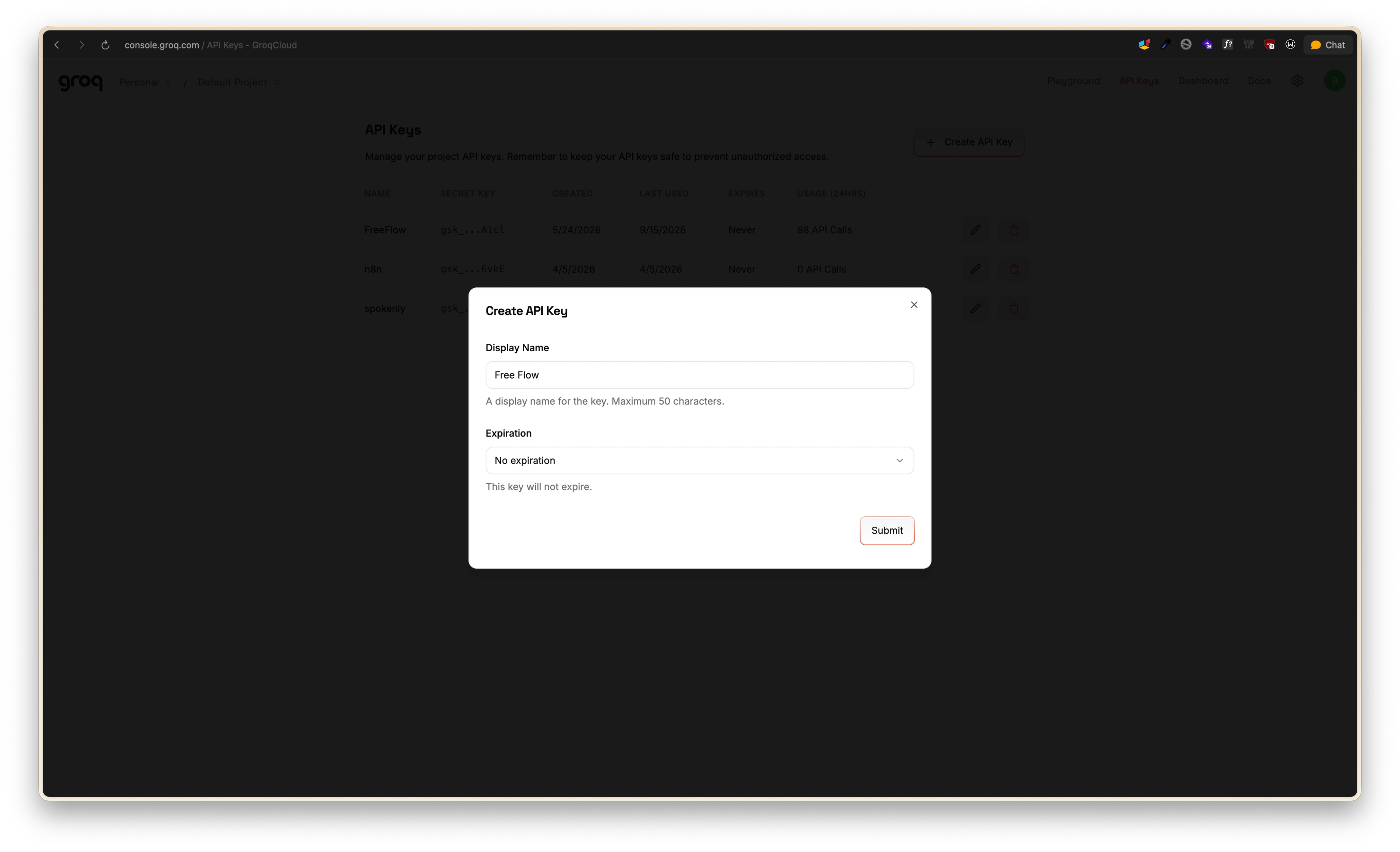
- 3.Click Create API Key, give it a name like FreeFlow, and copy the key immediately. Groq only shows it once.
Store the key somewhere you can find it again. You will paste it straight into FreeFlow in a few minutes, and if you lose it you will need to generate a new one.
Install FreeFlow
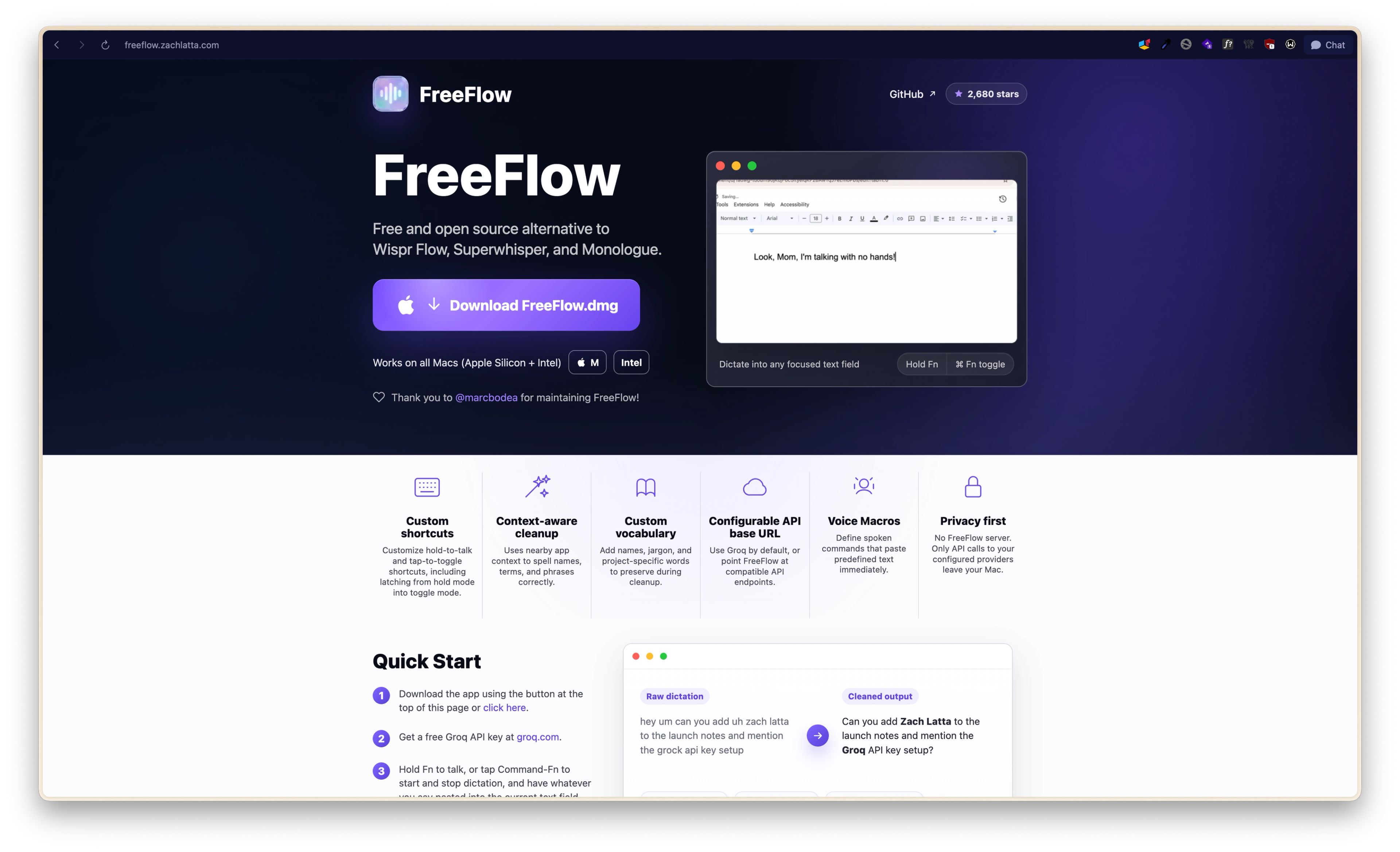
FreeFlow ships as a signed .dmg that works on both Apple Silicon and Intel Macs. There is no App Store listing, so you install it the same way you would any direct download.
- 1.Download FreeFlow.dmg from the FreeFlow GitHub releases page.
- 2.Open the .dmg and drag FreeFlow into your Applications folder.
- 3.Launch FreeFlow and grant the accessibility and microphone permissions macOS asks for. Both are required for FreeFlow to insert text into other apps and hear your voice.
Connect your Groq key and set the hold-to-talk shortcut
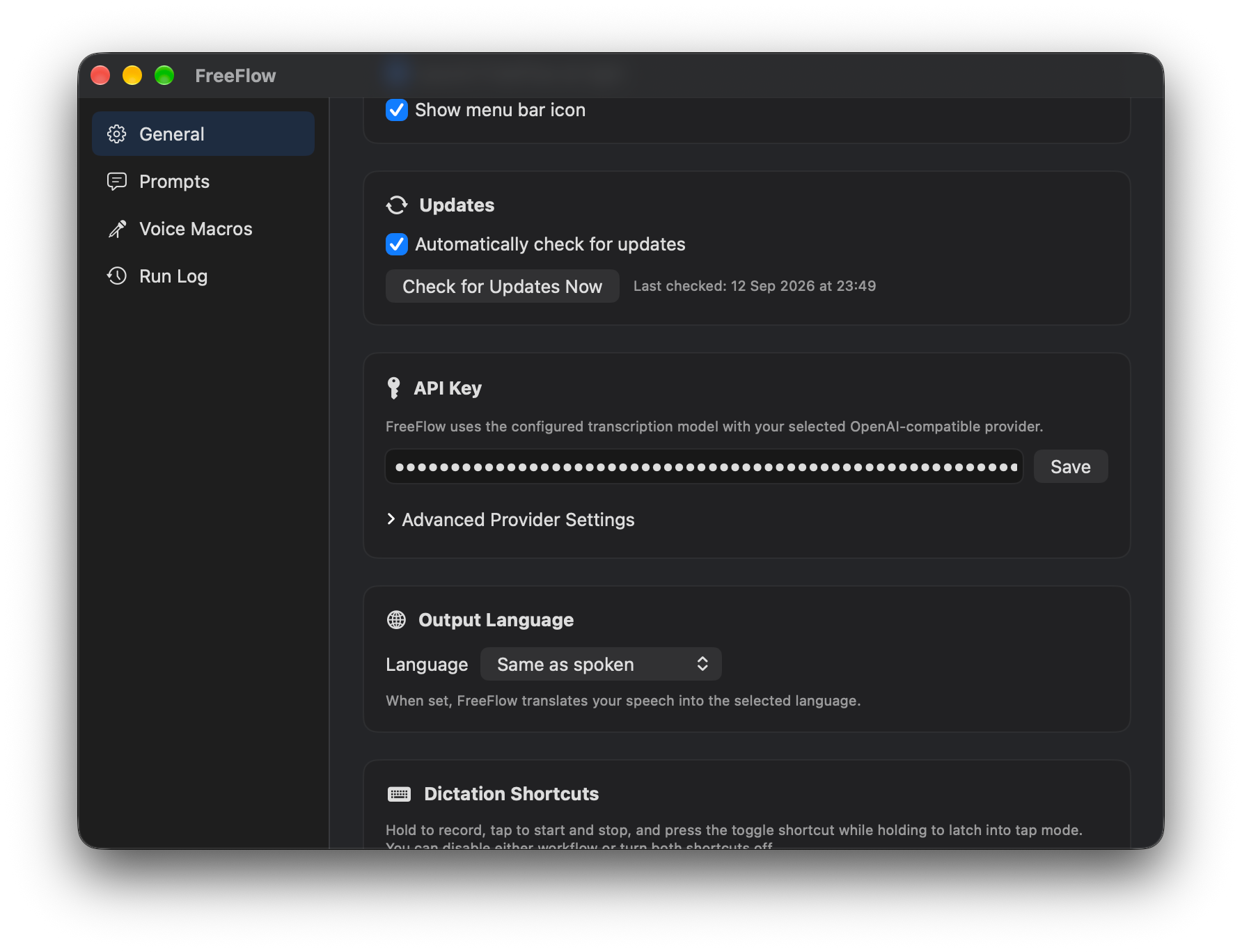
Open FreeFlow's settings and paste your Groq API key into the API field. This is the only credential FreeFlow needs, since Groq handles both the speech-to-text step and the cleanup pass that fixes punctuation and filler words.
This is also where you set the shortcut that makes FreeFlow worth using: hold a key to start recording, speak, and release it to stop and paste the cleaned text into whatever field is focused. FreeFlow supports this as a true hold-to-talk binding, separate from a tap-to-toggle shortcut if you would rather start and stop with two taps instead of holding a key down.
Sources: FreeFlow official site
Run your first dictation
Click into any text field, whether that is Mail, Notes, a terminal, or a browser form. Hold your shortcut, talk normally including the false starts and filler words you would not want on the page, then release. FreeFlow's context-aware cleanup reads what is already in the surrounding field to guess spelling for names and jargon, then hands you punctuated, cleaned text.
What you might say out loud: "ok so um can you draft a note to marcus about the release timeline and uh mention we're targeting next friday"
What lands in the text field: "Can you draft a note to Marcus about the release timeline and mention we're targeting next Friday?"
Teach FreeFlow your names and jargon
Context-aware cleanup gets you most of the way there, but it can still mangle a name or a product term it has never seen before. Add those words to FreeFlow's custom vocabulary list in settings so cleanup preserves them exactly instead of guessing at a spelling.
If you find the cleanup step is rewriting more than you want, FreeFlow lets you swap in your own system prompt for the cleanup pass. Write a short instruction that tells the model to fix punctuation and remove filler words only, without smoothing your phrasing or restructuring sentences. That gives you a more literal transcript closer to raw speech-to-text, while still stripping the ums and false starts.
Use Edit Mode to rewrite text by voice
Edit Mode turns FreeFlow into a voice-driven editor. Highlight text you already wrote, trigger your dictation shortcut, and speak an instruction like "make this shorter" or "turn this into bullet points" instead of new content. FreeFlow sends the selection plus your instruction to the cleanup model and replaces the highlighted text with the result.
Enable Edit Mode in settings, then choose whether it should trigger on your normal shortcut automatically or only when you hold an extra modifier key. The manual option is worth it if you dictate often and do not want every selection accidentally triggering a rewrite.
Swap in a local model if you want zero cloud calls
FreeFlow does not require Groq specifically. Its API base URL is configurable, so you can point it at any OpenAI-compatible transcription and chat endpoint, including a local server like Ollama or LM Studio. This trades speed for full offline processing, since local models on typical hardware currently add several seconds of latency compared to Groq's under-one-second responses.
If you go local, extend FreeFlow's default 20-second network timeout so longer local responses do not get cut off.
Sources: FreeFlow: Using a Local Model
Before you trust FreeFlow with real work
Where FreeFlow stops being enough
FreeFlow covers live dictation well, but it is not the only free or low-cost option on Mac, and it is not the right tool for every job. If you mainly need to transcribe existing audio files rather than dictate live, a dedicated transcription app will serve you better than any live-dictation tool. If full local processing matters more than setup speed, look at dictation software built around on-device Whisper models instead of a cloud API. And if your needs are genuinely light, macOS already ships a built-in dictation feature that costs nothing and requires no setup at all, even if it lacks context-aware cleanup and custom vocabulary.
The honest reason to pick FreeFlow specifically is the combination of a true hold-to-talk shortcut, context-aware cleanup, and zero subscription cost. If any one of those three stops mattering to you, one of the alternatives above is probably a better fit than forcing FreeFlow to do a job it was not built for.
Sources
Founder and Editor
Brian Weerasinghe is the founder and editor of AI Eating The World, where he covers artificial intelligence, tech companies, layoffs, startups, and the future of work. His reporting focuses on how AI is transforming businesses, products, and the global workforce. He writes about major developments across the AI industry, from enterprise adoption and funding trends to the real-world impact of automation and emerging technologies.