Image: Flickr / Wikimedia Commons / Unsplash
Figma MCP Server Setup: Claude, Codex, Cursor, Copilot, and Antigravity
Connect Figma's Dev Mode MCP server to every major coding agent and start turning real design data into code.
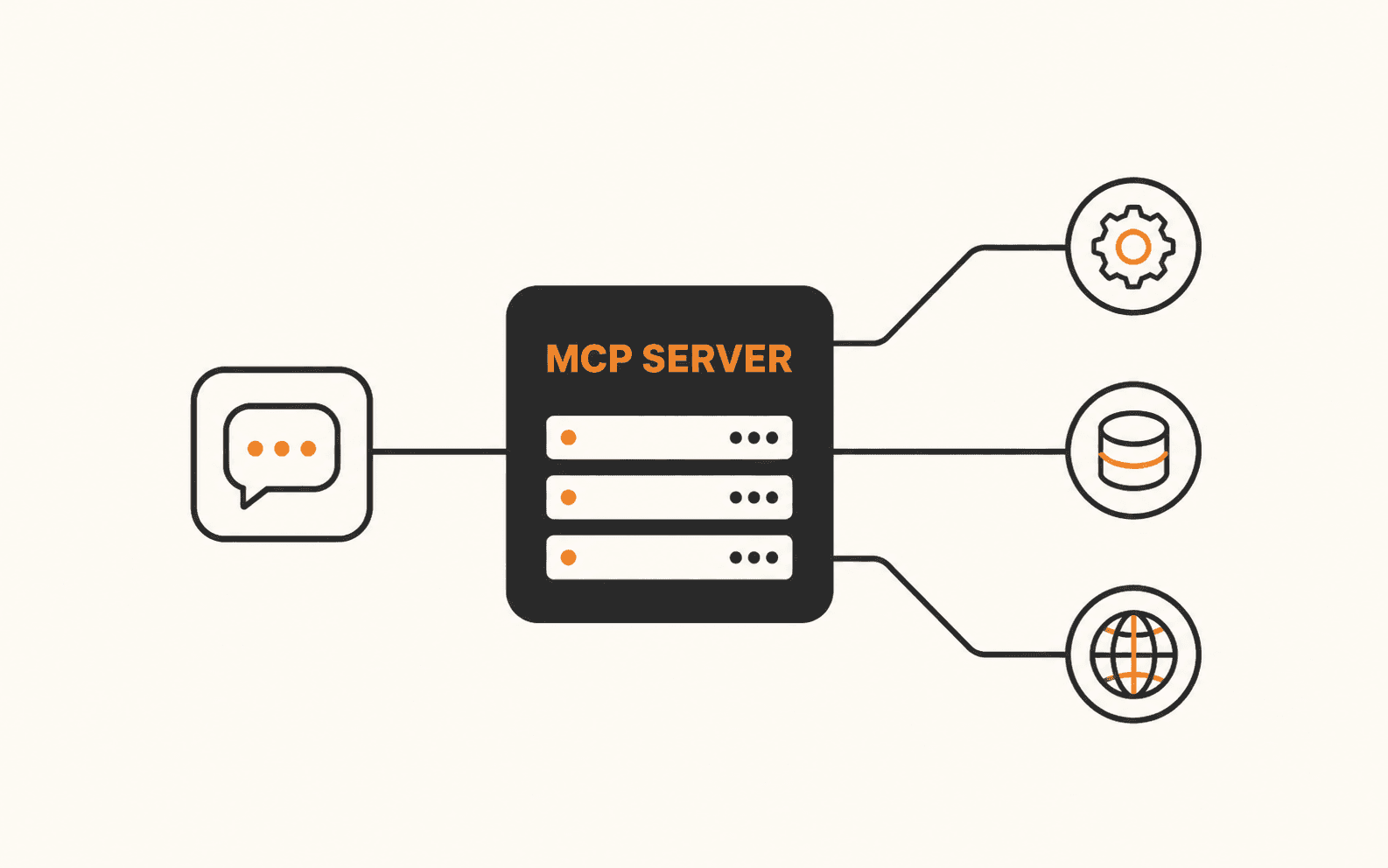
Figma's Dev Mode MCP server replaces screenshot-guessing with the real node tree: actual variable names, auto layout rules, and component props pulled straight from your design file. This guide covers setup for every major coding agent, Claude Code, Codex, Cursor, GitHub Copilot CLI, and Google Antigravity, using the remote server most teams should default to, with the desktop server covered separately for VS Code and enterprise cases. It also covers the plan requirements, the project rules file that stops agents from improvising on every prompt, and where setups commonly break.
Best For
- Frontend engineers doing design handoff
- Solo developers and small teams without a dedicated design-to-code pipeline
- Anyone evaluating which coding agent works best with Figma
Requirements
- A Figma account on a paid plan (Dev Mode MCP requires Professional, Organization, or Enterprise)
- One of: Claude Code, Codex CLI, Cursor, GitHub Copilot CLI, or Google Antigravity already installed
- Node.js 18 or later if you plan to use any local/stdio-based community server
What changes once Figma talks to your agent
Every coding agent listed here can already look at a screenshot and guess at spacing, colors, and component names. Guessing is the problem. The Figma MCP server replaces the guess with the actual node tree: real variable names, real auto layout rules, real component props, pulled straight from the file your design team is already using.
Figma ships this as the Dev Mode MCP server, and as of 2026 it has two flavors. The remote server runs at mcp.figma.com and needs nothing installed beyond your editor, just an OAuth login. The desktop server runs locally inside the Figma desktop app at 127.0.0.1:3845 and is aimed at organizations with specific enterprise requirements. Figma's own documentation recommends the remote server for almost everyone, so this guide leads with that path for each tool and only drops to the desktop server where it matters.
Before you touch any config file
The Dev Mode MCP server is gated by your Figma plan, not just your editor. You need a Professional, Organization, or Enterprise seat. Free and Starter plans cannot enable it, in either the remote or desktop form.
You do not need the Figma desktop app at all if you are using the remote server. The desktop app is only required for the local/desktop MCP variant, which most teams should skip in favor of remote.
Set up the Figma MCP server in Claude Code
Claude Code has the most polished path of the five tools here, because Figma ships an official plugin for it on Anthropic's plugin marketplace. The plugin bundles the MCP connection alongside Agent Skills for common Figma workflows, so it is worth installing even if you also want to understand the manual route.
Option A, the recommended path: install Figma's official Claude Code plugin.
Option B, manual setup, if you want the server without the bundled skills. This adds the remote server scoped to your current project:
If you work across multiple repositories, add it once at the user scope instead, so you never have to repeat this per project:
Start a new Claude Code session, then run /mcp, select figma, and choose Authenticate. Click Allow Access in the browser window that opens. Back in the terminal you should see Authentication successful. Connected to figma. Run /mcp again any time to confirm the connection is live.
Set up the Figma MCP server in Codex
OpenAI's Codex has two surfaces: the Codex app, which has a one-click plugin install, and the Codex CLI, which needs one terminal command. Both connect to the same remote Figma server.
In the Codex app: open Plugins in the upper-left corner, click the + next to Figma, then click Install Figma. You will be prompted to click Allow access to authenticate.
In the Codex CLI, run this single command instead:
Codex will prompt you to authenticate the server the first time you use it. Once connected, prompt Codex normally, referencing a Figma selection or link, and it will call the Figma tools automatically.
Set up the Figma MCP server in Cursor
Cursor supports the remote server through both a plugin command and a one-click deep link. The plugin route also adds Cursor-specific rules for handling Figma assets correctly, so it is the better default.
Option A, recommended: type this directly into Cursor's agent chat.
This installs the MCP server config plus skills for implementation, Code Connect, and design system rules in one step.
Option B, manual: open Cursor Settings, go to the MCP tab, click + Add new global MCP server, and paste this configuration:
Save, then click Connect next to Figma and Allow access when the browser opens. You should see a green status dot and a list of available tools back in Cursor's MCP settings.
Set up the Figma MCP server in GitHub Copilot CLI
Figma's MCP catalog lists GitHub Copilot CLI specifically, not the VS Code Copilot Chat extension. The two are configured differently. This section covers the CLI; if you work inside VS Code itself, use the desktop server steps further down instead, which apply to any VS Code-based editor.
From the terminal, the fastest route is the copilot mcp add subcommand, which writes straight to your user config without entering interactive mode:
If you prefer the interactive form, run copilot, then type /mcp add inside the session. Tab between fields, set Server Type to HTTP, paste the URL, and press Ctrl+S to save. The server is available immediately, no restart needed.
Confirm it landed correctly at any time:
Editing the config file directly works too. It lives at ~/.copilot/mcp-config.json, and Figma's entry should look like this:
Set up the Figma MCP server in Google Antigravity
Antigravity is not yet on Figma's official client list, and that gap shows up in practice: setup is less consistent than the four tools above, with several conflicting community guides circulating. The good news is that recent Antigravity builds have a built-in MCP server picker that includes Figma directly, and the people who have used it report it being easier than the manual route. Try this first.
Open Antigravity, click the ... menu at the top of the agent panel, and choose MCP Servers. Look for Figma in the list it offers and install from there. This handles authentication for you and is the path multiple users have confirmed working without extra configuration.
If Figma does not appear in that picker on your build, fall back to editing the raw config. From the same ... menu, choose Manage MCP Servers, then View raw config, and add an entry pointing at the remote server:
Note the field name: it is serverUrl, not url, for Antigravity's config schema. Using url instead of serverUrl is a documented cause of failed connections in this editor specifically.
Save and restart Antigravity. Because this integration is unofficial and still maturing, treat any third-party npm package claiming to be a Figma MCP server for Antigravity with caution, and prefer the URL-based config above over installing an extra local package where possible.
When you actually need the desktop server instead
The desktop server matters in one common case this guide hasn't covered yet: VS Code itself, including the Copilot Chat extension running inside it. VS Code is not set up the same way as Copilot CLI above, so if you live in VS Code, follow this instead.
First, open the Figma desktop app, open or create a Design file, switch to Dev Mode with Shift+D, and click Enable desktop MCP server in the inspect panel. Figma will confirm the server is running at http://127.0.0.1:3845/mcp.
In VS Code, press Cmd+Shift+P, run MCP: Add Server, choose HTTP, paste http://127.0.0.1:3845/mcp, and name it figma-desktop. Open the chat panel with Cmd+Option+B, switch to Agent mode, and type #get_design_context to confirm the tools loaded. You need GitHub Copilot enabled in VS Code for any of this to work, since the MCP integration runs through it.
The same desktop server and URL work as a manual fallback for any other tool on this list too, if the remote server is ever unavailable on your network or your organization restricts outbound OAuth.
Get from a Figma frame to working code
Once any of the clients above shows Figma as connected, there are two ways to point it at a design: selection-based, where you click a frame in the Figma desktop app and prompt your agent to implement the current selection, and link-based, where you copy a frame's share link and paste it into your prompt. Link-based is the one that works from any client, including web-only setups, since your agent extracts the node ID from the URL without needing to open it.
Stop the agent from improvising on every prompt
The single biggest quality lever Figma documents is a project rules file, the same CLAUDE.md, .cursorrules, or AGENTS.md pattern most of these agents already read. Without it, every agent defaults to React and Tailwind and reinvents your component library each time.
Add something like this to your project's rules file, adjusted to your actual stack:
- Always reuse components from our existing design system before generating new ones
- Replace any Tailwind utility classes the MCP output suggests with our project's own tokens
- If the server returns a localhost source for an image or SVG, use it directly. Never invent a placeholder or pull in a new icon package
- Run get_design_context first, then get_screenshot for visual reference, before writing any code
- Validate the final UI against the Figma screenshot before marking the task complete
Confirm it's actually working before you build on it
Where this breaks down
Tools not loading or connection lost: almost always an expired OAuth session on the remote server. Re-run the authenticate step for your client rather than trying to debug the config file.
Server keeps returning generic web/React code regardless of your actual framework: this is a missing rules file, not a broken connection. Add the project rules from the section above.
500 errors or images that stopped loading: check Figma's own status and rate limit documentation before assuming your config is wrong, since these are frequently server-side and resolve on their own.
Antigravity specifically: if a third-party package errors with something like an EOF failure on startup, the package is printing debug text to stdout and breaking the JSON protocol the editor expects. This is a known issue with at least one community package and is one more reason to prefer the official URL-based config over an extra installed package when you can.
One thing worth flagging before you wire this into a real codebase
The remote MCP server can write directly to your Figma files and canvas, not just read from them, once you grant access. That write capability is currently free during Figma's beta period but is explicitly slated to become a usage-based paid feature later. Budget for that before building a workflow that depends on heavy write usage.
Brian Weerasinghe is the founder and editor of AI Eating The World, where he covers artificial intelligence, tech companies, layoffs, startups, and the future of work. His reporting focuses on how AI is transforming businesses, products, and the global workforce. He writes about major developments across the AI industry, from enterprise adoption and funding trends to the real-world impact of automation and emerging technologies.