Image: Flickr / Wikimedia Commons / Unsplash
How to Use Claude Inside Microsoft 365
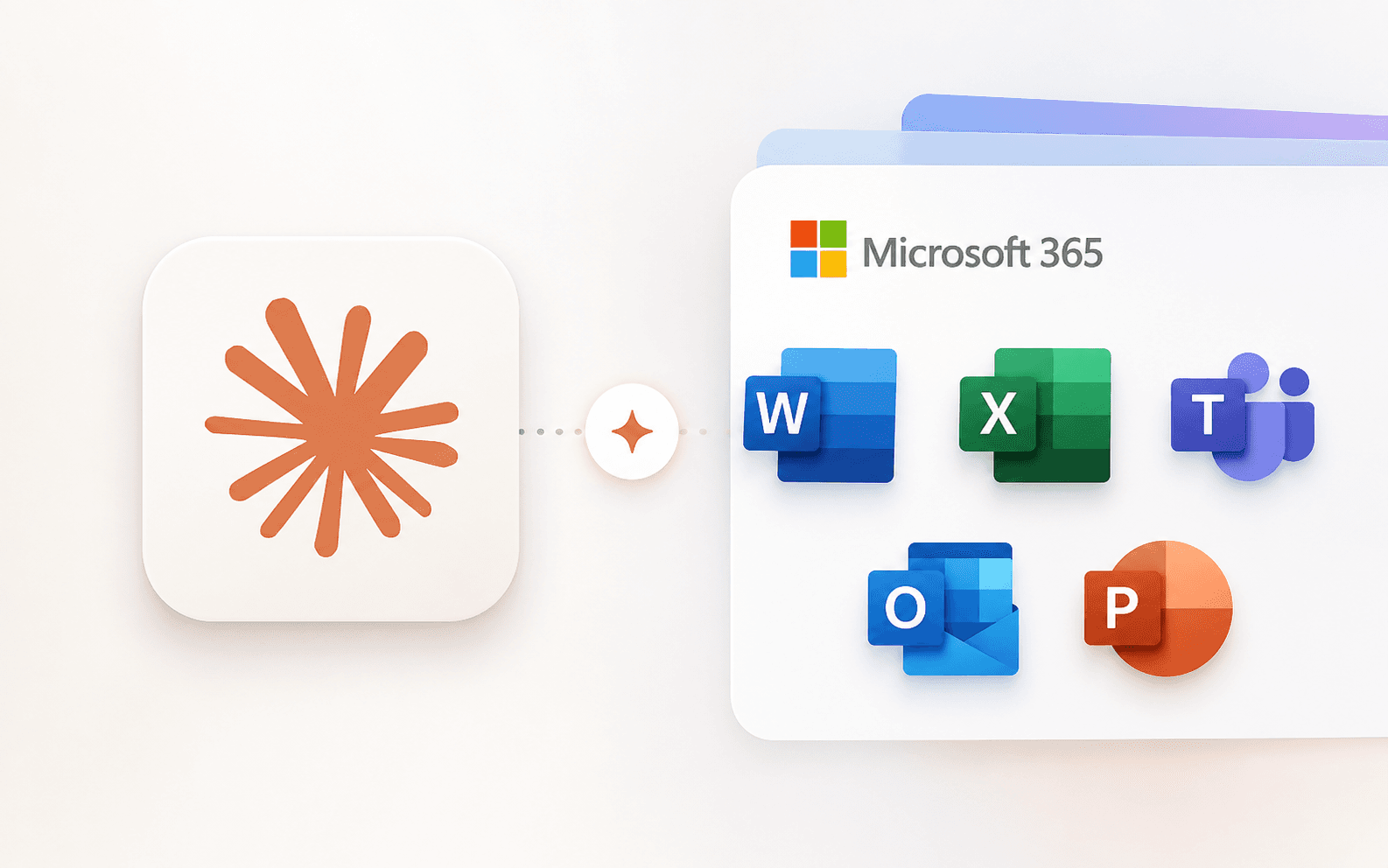
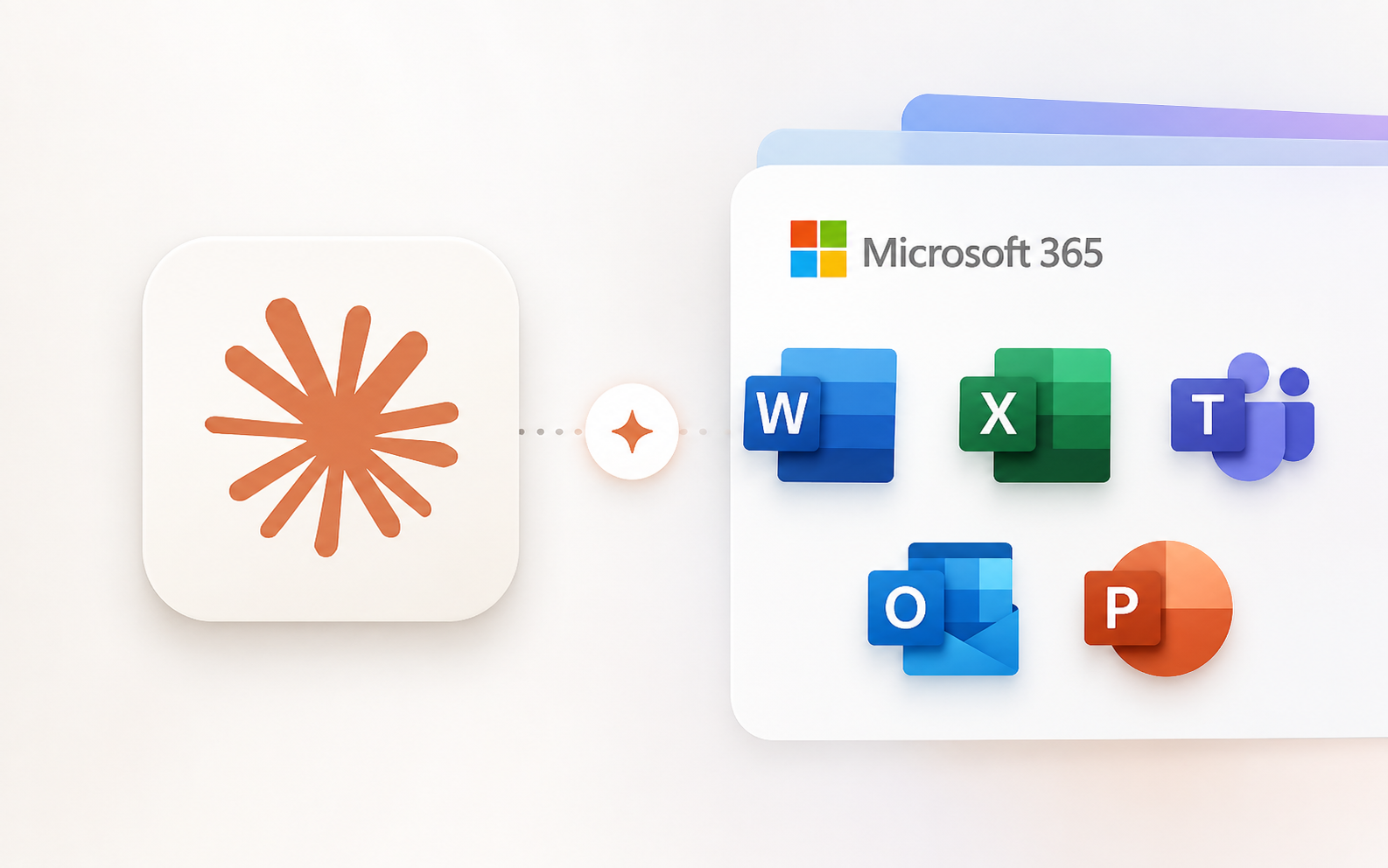
Claude now works natively inside Excel, PowerPoint, Word, and Outlook. Here is how to get it running and what to actually do with it.
Best For
- Knowledge workers and analysts using Office daily
- Teams that move between Excel models, Word docs, and PowerPoint decks
- Executives and EAs managing high-volume inboxes in Outlook
Requirements
- A paid Claude plan (Pro, Max, Team, or Enterprise)
- Microsoft 365 account with Excel, PowerPoint, Word, or Outlook
- Access to the Microsoft AppSource marketplace
What this actually is
Claude for Microsoft 365 is not a chatbot you paste content into. It is a sidebar that lives inside Excel, PowerPoint, Word, and Outlook simultaneously. The key detail: context carries across all four apps in the same conversation. You can start in an email thread, open a brief in Word, build a model in Excel, and turn the analysis into a PowerPoint deck without starting over each time.
Claude for Excel, PowerPoint, and Word are generally available on all paid Claude plans. Claude for Outlook is currently in public beta, also available on all paid plans. There is no extra subscription required beyond your existing Claude account.
Install in under two minutes
Both installs come from Microsoft AppSource. The Microsoft 365 add-in covers Excel, PowerPoint, and Word in one go. Outlook is a separate install.
- 1.Go to the Microsoft AppSource marketplace and search for Claude for Microsoft 365
- 2.Click Get it now and sign in with your Microsoft account
- 3.Open Excel, PowerPoint, or Word - the Claude sidebar will appear in the right panel
- 4.For Outlook, install the separate Claude for Outlook add-in from AppSource
- 5.Sign in with your Claude account inside the sidebar to link your plan
What each app can do
In Excel, Claude can interrogate any cell, update assumptions without breaking formula dependencies, and build multi-tab financial models from scratch. You describe the structure; Claude builds the formulas. At Citadel, investment analysts are using it to build and update coverage models and pressure-test assumptions without leaving the spreadsheet.
In PowerPoint, Claude builds slides inside your existing template - using your actual slide masters, heading styles, and formatting. It can generate native charts and diagrams and edit only what you have selected without touching the rest of the deck.
In Word, every edit Claude makes shows up as tracked changes, so nothing gets accepted without you reviewing it first. It can respond to inline comment threads and update content to match your house style.
In Outlook (beta), Claude can triage your inbox by priority, draft replies that wait in your compose window until you click send, and find meeting availability across calendars. Nothing gets sent automatically.
The cross-app workflow: email to deliverable
The most powerful use case is the one Anthropic demos prominently: taking a project from inbox to finished output without switching context. Here is how that flow works in practice.
Start in Outlook by asking Claude to triage what needs your attention and surface the relevant brief. Open that document in Word. Claude already knows the email thread it came from. Ask it to start a memo or analysis in your firm template. Move to Excel to build the supporting model - Claude can pull numbers from the Word doc and structure real formulas across tabs. Once the numbers are done, ask Claude to draft the PowerPoint deck from the brief and the analysis. It uses your template, populates tables in place, and keeps numbering consistent.
The context does not reset between apps. That is the core differentiator versus pasting content into Claude.ai manually.
A prompt you can reuse
This prompt works well when you are converting an email thread or document brief into a structured slide deck. Run it from inside PowerPoint after opening the relevant Word doc or email in the same Claude session.
Watch the official demo
The official demo walks through the full email-to-deliverable workflow in real time, showing how context carries from Outlook through Word and Excel into PowerPoint. Worth watching before your first real session to understand how the sidebar behaves across apps.
What to watch out for
Claude does not have access to files you have not opened. If you want it to reference a document, that document needs to be open in the relevant app during the same session.
Outlook is still in beta. Draft replies open in the native Outlook compose window and wait for you to click send - Claude will never send on your behalf - but expect some rough edges in calendar scheduling and thread handling.
Enterprise and cloud deployment options (Amazon Bedrock, Google Cloud Vertex AI, Microsoft Foundry) are available if your organisation routes Claude through its own cloud credentials. Check with your IT team before assuming direct sign-in is the right option.
Before you start your first real workflow
Brian Weerasinghe is the founder and editor of AI Eating The World, where he covers artificial intelligence, tech companies, layoffs, startups, and the future of work. His reporting focuses on how AI is transforming businesses, products, and the global workforce. He writes about major developments across the AI industry, from enterprise adoption and funding trends to the real-world impact of automation and emerging technologies.